
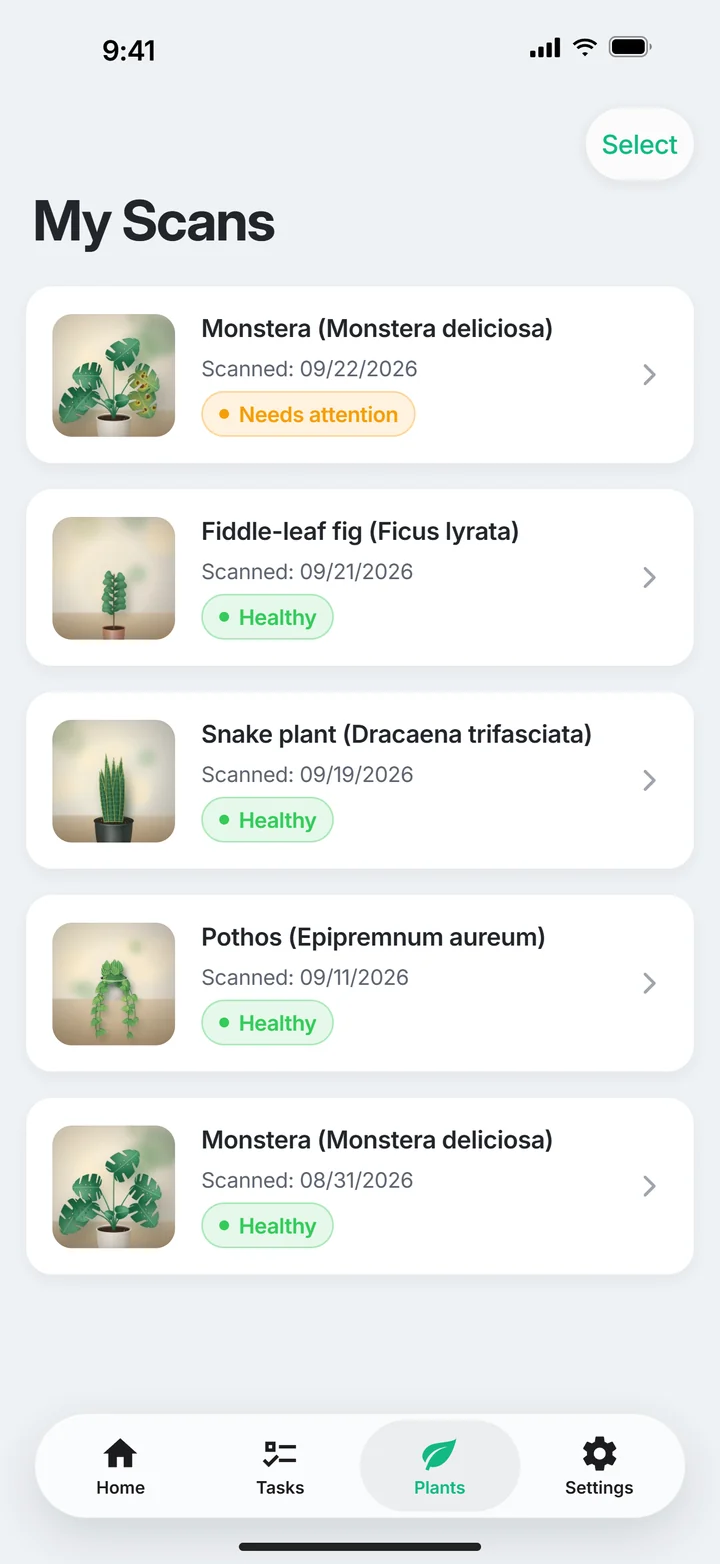
A status helps organise your attention. The plant’s actual condition still decides what comes next.
Start with a few familiar plants
Begin with a small selection you can recognise easily. Match a saved picture to the actual plant before drawing more tasks from it. Available capacity depends on your plan; current allowances are shown in the app and on the plans page.
Check unusual plants first
Use status, recent scans and upcoming tasks as a starting point. Then look at the plant: how is the soil, is there new damage, has it moved? The overview helps prompt an inspection; it is not a sensor for the current condition.
Keep comparisons understandable
Photograph a plant from a similar view at later checks. Record any pot or location change separately. Include existing damage in your comparison so it does not appear to be a fresh decline each time.
Match tasks to the right plant
When adding a task, check which plant it belongs to and whether the step makes sense today. Saving more plants does not automatically improve care. Start with an overview you will actually use regularly.
Name plants by actual positions
Two similar specimens are easier to distinguish when names include location, such as kitchen peace lily and office peace lily. Species naming can remain provisional when uncertain. Stable links between tasks and pictures matter. Record a move when location changes. A readable name resolves organisational confusion but does not provide reliable botanical identification or change actual requirements. Use it to recognise the correct pot before acting rather than treating a matching name as proof of matching moisture.
Check before transferring a care idea
An action suggested in a result needs to fit the selected plant. Review name, task and date before adopting it. Another specimen of the same species may need different watering because its pot and position differ. Phrase repeated inspection as a check rather than a mandatory volume. The overview should support decisions. It is not an automatic irrigation system and does not prove that every growing condition remains unchanged since the previous entry or completed task.
Clarify a duplicate association carefully
If organisation looks duplicated or unclear, compare names, pictures and associated tasks before removing anything. Tell support precisely which view is involved. This guide promises neither automatic merging nor recovery of deleted entries. Preserve important starting observations for your own assessment. Correct association is a clearer next step than deleting merely to shorten the list. For an unclear action, read its actual explanation first instead of assuming that a similar label performs the same operation in every app.
Your quick check
- Have saved and actual plants been matched?
- Have unusual plants been checked before routine tasks?
- Have you separated old and new damage?
- Does the task belong to the right plant?
Common questions about this topic
Does the overview measure health live?
No. This website describes saved information and assessments, not automatic measurements in the pot.
How many plants can I save?
That depends on Free, Plus or Pro. Compare the plans page with your current allowance in the app.